


.png)




AI scheduling assistants aren't just about setting meetings anymore—they're modifying how we plan, prioritize, and show up for work. Whether managing back-to-back calls or blocking time for deep focus, the right tool can make your day smoother without much manual effort.
That’s why I tested the most talked-about AI scheduling tools out there, and a few really did stand out. Here's what I found.
The 10 best AI scheduling assistants: At a glance
- Lindy: Best AI scheduling assistant for automating full workflows
- Reclaim: Best for scheduling habits, breaks, and time blocks
- Motion: Best for real-time calendar updates and AI-generated workdays
- Clockwise: Best for teams who need to reclaim focus time
- Calendly: Best for client meetings and automated reminders
- Trevor AI: Best for solo users who prefer clean interfaces
- BeforeSunset AI: Best for deep work with focus modes and daily planning
- Sidekick AI: Best for scheduling through email and Microsoft Teams
- Akiflow: Best for structured daily planning with strong integrations
- Otter Assistant: Best for transcribing and summarizing meetings in real time
What is an AI scheduling assistant?
An AI scheduling assistant app helps you organize meetings, manage tasks, and plan your day using automation and machine learning. Unlike traditional calendar apps, these tools learn your habits, prioritize tasks, suggest optimal time slots, and sometimes even reschedule meetings when conflicts arise.
In short, it's like having a personal assistant that adapts to your workflow and helps you stay on track.
How do AI scheduling assistants work?

If you think AI scheduling apps can only plan your day and block time efficiently using AI, you’re missing out on a lot. Because these modern-day scheduling assistants have a lot to offer. Here are some coolest features you get while using such tools:
- AI-powered calendar optimization: AI scheduling assistants can easily understand your daily routine. These apps look closely at your calendar, like your meeting habits, working hours, and even how often you take breaks. Over time, they can organize your schedule, reduce conflicts, and help you make the most of your day.
- Automated meeting coordination: We've all been through the frustrating back-and-forth emails to set up meetings, especially when dealing with different time zones. AI scheduling apps practically eliminate this issue by automatically syncing multiple calendars and adjusting for everyone's time zone.
- Smart prioritization: These apps quickly recognize which tasks or meetings are most critical to me based on my past behavior and preferences. This means the app knows that client meetings or deadline-driven tasks need priority slots, helping me stay on track without manual intervention.
- Superb integrations: I love it when technology just works without extra fuss, and that’s exactly what these AI tools offer. They connect effortlessly with my Google Calendar, Outlook, Slack, and CRM systems. Having everything integrated ensures I never miss an update or double-book myself.
AI schedulers vs traditional calendar tools
How I picked the best AI scheduling assistants

I didn't just go by feature lists—I spent time with each of these tools, setting up my weekly meetings, calendar events, and daily planning tasks to see how well they worked in real-world use. Importantly, I didn’t just look for assistants who automated things for the sake of it but picked the ones that genuinely made my schedule feel less chaotic.
The must-haves? A clean interface, minimal setup time, smart task/event syncing, and the ability to personalize scheduling logic. Bonus points if the AI learned from my behavior or offered practical nudges like time estimates or follow-up reminders.
If you also want a checklist to determine the best AI scheduling assistant for you, here’s a quick summary of some no-brainer features to look out for:
- Automated scheduling – AI finds the best time slots and eliminates scheduling conflicts
- Cross-platform integration – Syncs with Google Calendar, Outlook, Slack, Zoom, and CRMs
- AI-powered meeting suggestions – Smart prioritization based on work patterns
- Multi-user collaboration – AI scheduling for teams and enterprises
- Time-zone intelligence – Automatically adjusts for international meetings
- Task management and reminders – AI-powered to-do lists and follow-ups
The 10 best AI scheduling assistants in 2025
1. Lindy: Best AI scheduling assistant for workflow automation
Score: 10/10
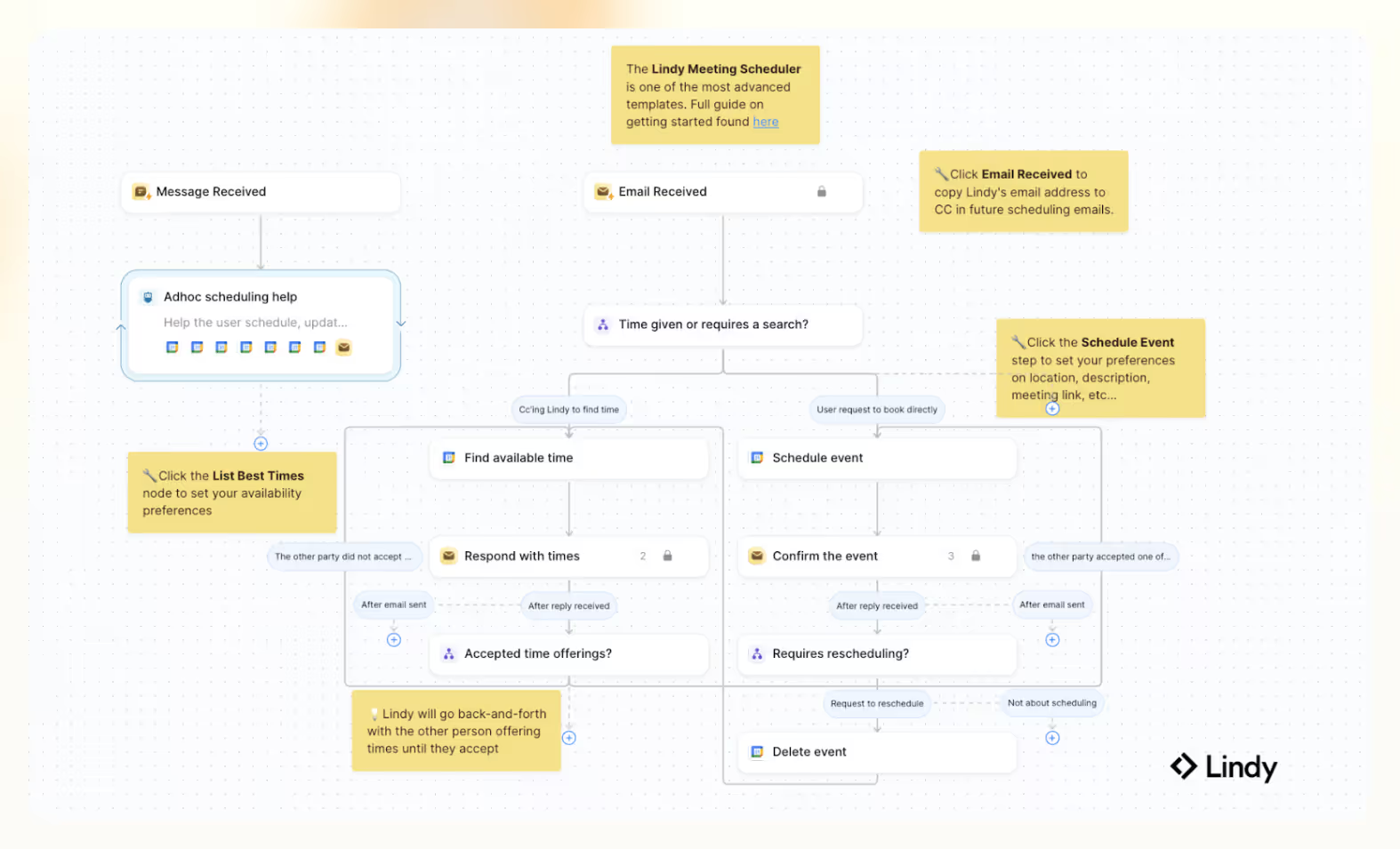
We don’t just book meetings at Lindy; we help you automate your workflow. Most AI scheduling tools stop at time slots. We go further.
Let’s say you need to “find a time for a product sync with Anna next week, preferably mornings after 10 AM.” Lindy’s Meeting Scheduler handles it in seconds. It scans your calendars, suggests the best time, creates a Zoom link, and sends out a booking link. All of that, without you even leaving Slack. Our conversational AI handles the back-and-forth so you don’t have to.
Lindy can also join your meetings, transcribe the entire conversation precisely, and summarize the whole meeting for you. It further sends you alerts so you don’t miss meetings or overload your schedule.
Importantly, with new partnerships with Pipedream and Apify, Lindy now supports 5,000+ actions across 2,500+ apps and 4,000+ web scrapers—bringing enterprise-level automation to non-technical users.
And with Agent Swarms, Lindy doesn’t just multitask—it multiplies. Need to prep for five back-to-back meetings or research 100 conference attendees? Lindy uses Looping to spin up parallel agents—one per task—that work in tandem until every detail is covered.

{{callout}}
Example use case for Agent Swarms: Meeting prep that scans past emails, finds LinkedIn links, and delivers a clean report about every person you’ll meet. It all happens quickly, since Lindy makes an agent to research each person simultaneously.
From booking meetings to calendar automation and processing documents, you can find a range of guides and tutorials at the Lindy Academy. The lessons are short, clear, and beginner-friendly. So, if you’re new to Lindy or just want to level up your workflow, it’s a good place to start.
Features
- AI-suggested meeting times and topics—with human-in-the-loop approval
- Automated CRM updates from meeting summaries
- AI-generated task recaps and action items
- Customize approval levels and notification preferences
- Real-time inbox updates with meeting responses
- Easily revert or override scheduling suggestions
- Agent Swarms for parallel task execution—automate research, outreach, and recurring tasks at scale
Best For
Lindy is ideal for founders, operations teams, and busy professionals who juggle multiple tools and tasks daily. If your day involves scheduling meetings, following up with clients, updating CRMs, or handling admin workflows, Lindy helps you automate it all—without needing technical skills.
Pricing
Lindy offers three pricing plans, starting with the Free plan. It is ideal if you're just getting started. You get 400 monthly credits to run up to 400 tasks—enough to see how Lindy fits into your workflow. From scheduling meetings to sending follow-ups and automating admin tasks, it covers the basics without costing a thing. Here are the options:
- Pro Plan ($49.99/month): 5,000 credits, up to 5,000 tasks/month, 20M character knowledge base, premium actions, phone call basic features
- Business Plan ($299.99/month): 30,000 credits, up to 30,000 tasks/month, 20M character knowledge base, premium phone call features, priority support
Verdict
If you’re looking for the best AI scheduling assistant that does more than just book meetings, go with Lindy. It doesn’t just slot in appointments; it ensures seamless integration with your calendar, syncs across platforms, and even sends automated follow-ups to keep everyone on track. For anyone who wants smart, scalable workflows—not just a calendar fix—Lindy can help you work better than ever.
{{templates}}
2. Reclaim: Best for scheduling habits, breaks, and time blocks
Score: 9/10
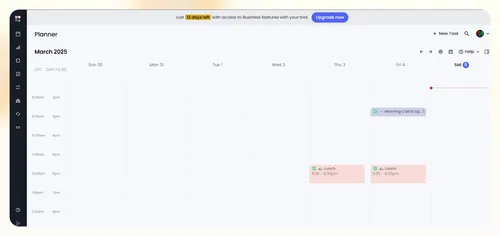
I've spent the past month testing Reclaim AI, and it did help me manage my calendar better. The standout for me has been its Buffer Time feature, which automatically adds short breaks before or after meetings, so I'm not constantly jumping from call to call without downtime.
You also get a Personal Time Tracking feature that tracks your time on breaks, travel, meetings, and leisure. Using this data, Reclaim sends you weekly performance reports for you or the team members, whoever is being tracked.
To manage your time better, use the “Scheduling Links” that show when you're available, allowing people to pick slots directly. For teams in sales, customer support, or collaborative projects, Reclaim supports Round Robin meeting links, too. Here, you can add custom rules and unlimited members for easy group scheduling.
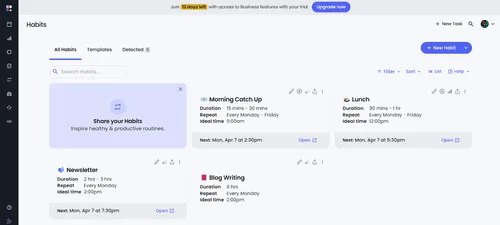
With its AI Habit Builder, I scheduled time for personal habits like reading and meditation into my calendar. I've found this especially useful for recurring tasks like blog writing, which I otherwise tend to skip when things get hectic.
Plus, setting up a Habit is simple. Pick a template or create one for your team and then simply edit the details. You can also customize your habits using emojis, color codes, notes, and specifying locations.
Integration-wise, Reclaim worked smoothly with my existing Google Calendar setup and didn't force me to adopt new tools.
Lastly, while Reclaim isn't the best for extensive project management needs, you can increase its usability by simply connecting it with tools like Asana.
Features
- Adjusts tasks dynamically if meetings run over
- Updates Slack status based on calendar events
- Syncs with tools like Todoist, ClickUp, Linear, and Jira
- Special discount for education, startups, and nonprofits
- Reclaim sets automated daily plan, priorities, and tasks
- Quick support with access to live chat and email
Best For
Professionals, freelancers, or small teams who need smart calendar automation, task syncing, and habit scheduling without switching tools.
Pricing
Reclaim AI offers a free Lite plan if you're just getting started. You get unlimited tasks, time tracking, and basic calendar sync, but integrations are limited. Scheduling is available within a 3-week period, which works well for personal use.
Here are the paid plans:
- Starter Plan ($10/seat/month): Unlimited habits, unlimited calendar sync, unlimited integrations, people analytics and advanced time tracking
- Business Plan ($15/seat/month): up to 100 seats, unlimited smart meetings, delegated access, dedicated workspace support
Verdict
Reclaim helped me stay on top of tasks and habits without constant planning. It works best if you're already using Google Calendar. But this might not be for you if you want a more visual or hands-on planner. For automated scheduling, though, it nails the basics.
3. Motion: Best for AI-powered daily planning and automatic rescheduling
Score: 8.5/10
Motion takes your to-dos, deadlines, and meetings and builds you the best AI calendar assistant for your daily needs.
You don't just get reminders; you get a real schedule, made for how your day looks.
Using Motion's AI Meeting Scheduler, I picked time blocks I was okay with instead of going back and forth over email, and others booked meetings inside those windows. It avoids last-minute interruptions and works quietly in the background.

If a meeting pops up or something runs over, it reshuffles things automatically. You don't have to drag and drop every little task. And while the AI takes over most of the scheduling, you can manually move stuff around if needed. Just don't expect it to be instant. I saw a short delay while Motion recalculated everything.
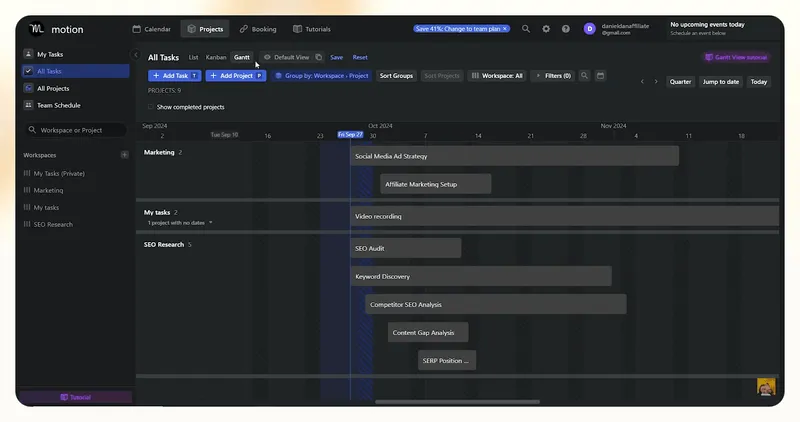
Task management is solid. I liked how you can build everything from lists to Kanban boards, and everything immediately syncs with your calendar. The Projects and Tasks tab is where you can build your workspace and assign tasks to your team members. It's not as full-featured as tools like Asana or ClickUp, but it still works well for personal and small team planning.
Motion leans heavily on AI—not just for scheduling but also for taking notes, editing content, generating workflows, and doing basic research. Since there's no free plan, the paid ones come with unlimited AI usage, which is great if you rely on it often.
Features
- Advanced dashboard with custom reports, charts, and analytics
- Motion comes with Android, iOS, and Desktop apps
- Unified view with Google, Outlook, and iCloud Calendar integrations
- Strong security with SSO (Single Sign On) and RBAC (Role Based Access Control)
- AI adds sub-tasks, task labels, notes, and uses templates to automate
Best For
Motion is best for professionals and teams who want their calendars and tasks auto-managed. If you hate juggling to-dos manually and need something that adjusts your day in real time, this one fits.
Pricing
Motion offers two pricing plans:
- Pro AI ($49/seat/month): AI scheduling, project and task management, note-taking, workflow generator, AI writer/editor, unlimited AI usage and storage, and priority support
- Business AI ($69/seat/month): Everything in Pro AI, plus productivity charts, team capacity planning, advanced dashboards, reporting, time tracking, central billing, team permissions, and business-level support
Verdict
With AI-powered tools, Motion plans your day, adjusts in real time, and packs in solid project management features. If you like a bit of manual control, Motion's automation might feel a bit too aggressive. And honestly, a 7-day trial doesn't cut it. I need at least a few weeks to get used to such tools and see if it's worth it.
4. Clockwise: Best for teams who need to reclaim focus time
Score: 8.5/10
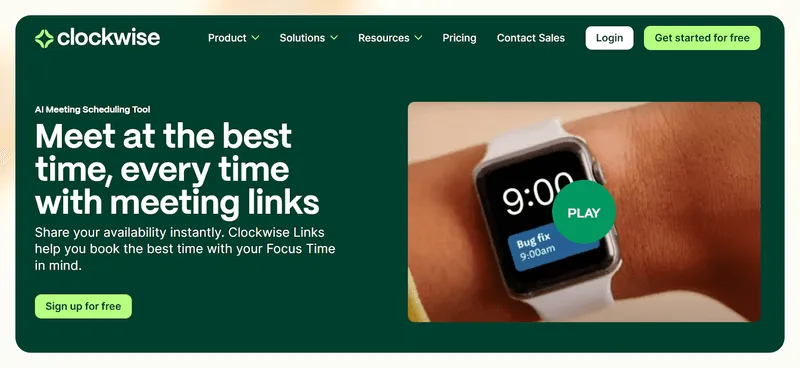
Clockwise plugs into your existing calendar (I tested it with Google Calendar) and immediately starts clearing up space. During setup, it asked about my work habits—how much focus time I need, when I prefer to take lunch, and how flexible I am with meetings. Based on that, it blocked out work sessions and organized my day without much input.
It's a mix of a drag-and-drop interface and a chatbot, which makes it quicker to reschedule or re-prioritize on the fly.
The real value shows up in team settings. Once everyone's connected, Clockwise scans availability and shifts meetings to maximize focus time. You can create meeting templates, assign urgency levels, and let Clockwise decide what stays and what can move.
When someone books or cancels through your link, it auto-notifies attendees, so there is no need to chase updates.

If you're on a higher plan, the support's solid. I had access to priority responses, and a customer success manager checked in during the first few weeks to ensure the setup went smoothly. They even offer a Meeting Culture Workshop, a nice add-on if your team's trying to rethink how meetings are run.
That said, it's not a tool I'd recommend if you mostly work async or solo. There's just not much to optimize. And the 24-hour calendar sync caught me off guard a couple of times—I'd move things around expecting them to update, but the changes didn't show up immediately. It might even feel a little rigid if you like planning your week out in detail or making last-minute swaps.
For teams with regular meetings, Clockwise offers integration with tools like Zoom and Google Meet.
Features
- Custom branding on the booking page and personalized links
- Centrally manage user provisioning and deprovisioning via SCIM protocol
- Google SSO for easy and secure sign-in
- Offers user management, divisional plans, and custom contracts
- Special discount for startups and nonprofits
Best For
Clockwise is best for large teams struggling with too many meetings and insufficient focus time. It's handy if your team's calendar is always packed and you need a smarter way to make space without constantly rearranging things yourself.
Pricing
Clockwise has a free plan for small teams looking to manage their calendars more efficiently. You can auto-schedule focus time, use unlimited scheduling links, and delegate calendar management without paying a cent.
Paid plans add more control and deeper team-wide features:
- Teams ($6.75/user/month, billed annually): Offers uninterrupted Focus Time, smarter meeting optimization, and group scheduling with internal and external teammates
- Business ($11.50/user/month, billed annually): Adds org-wide analytics, round-robin meeting distribution, advanced billing, and admin tools for larger teams
Verdict
Clockwise worked well at making space I didn't know I had. That said, the 24-hour sync felt slow when I needed quick changes, and if you don't have a meeting-heavy workflow, it won't do much for you. Tools like Motion and Lindy are better for automated workflows and AI tools.
5. Calendly: Best for client meetings and automated reminders
Score: 9/10
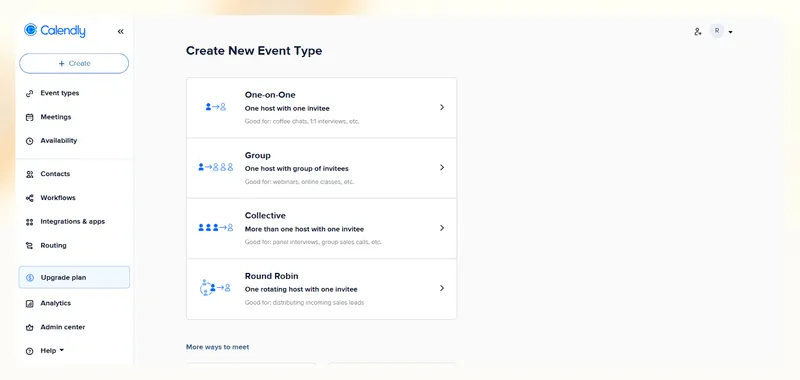
Calendly doesn't try to be a management software; it focuses on scheduling and nails it. Onboarding barely took minutes, and I could create my first few events like 15-minute check-ins and 45-minute calls—right after connecting my calendars and setting my availability.
I really liked how detailed the customization is. You can set buffer times between meetings, limit how far in advance people can book, and add custom questions (like "What do you want to cover on the call?"), and even control when they can schedule—down to specific days, hours, and holidays.
You can brand your page too, though with the free plan, you're stuck with Calendly's logo unless you upgrade. Reminders were another plus. I tested email and text nudges before meetings and got fewer no-shows than usual. You can tweak them with variables like the invitee's name, event time, or meeting link, making your communication more polished.
Calendly's integrations are honestly one of its strongest points. I mostly use Zoom and Slack, so I connected those first, and the setup felt smooth. If you want more control, Calendly also offers APIs and connects with Zapier so that you can plug into over 7,000 tools without manual coding.
Similarly, Stripe and PayPal integrations let you collect payments if you’re a mentor or consultant charging for your meetings.

Beyond that, it supports tools like Microsoft Teams, Loom, HubSpot, Salesforce, and more, so it slots right into your workflow, whether you're in sales, consulting, or recruiting.
For freelancers like me, the pre-built workflows are a nice touch. I tested a few for sending follow-ups and reminders automatically, but you can also build your own if you need something more specific.
And now, just like every other SaaS tool out there, Calendly is also going all-in to integrate AI features to their product to make it more efficient. The plans include using AI-powered schedule optimizing where it’ll analyze your work patterns and suggest optimal times for activities and maintain a wok-life balance for you.
Apart from this, there are plans for predictive time blocking, where Calendly will automatically block time for deep work, breaks, and your personal activities. However, as of now Calendly offers a waitlist for early access to upcoming AI-powered solutions, including exclusive sneak peeks and new scheduling automation content.
Features
- Routing Form to request information from website visitors
- One-click access with Calendly Chrome extension for web and phones
- Meeting Polls to find a time that works for everyone in a group
- Automate user and group access with SCIM for easier onboarding
- Integration with Google Analytics to track campaigns within Calendly
Best For
Calendly is excellent for freelancers, consultants, and growing teams that need a clean, no-fuss way to schedule meetings and automate follow-ups. And if your workflow involves client calls, interviews, or sales demos, Calendly slots in smoothly without needing a steep learning curve.
Pricing
Calendly’s free plan works well for solo users who just need one event type. You can connect one calendar, customize your availability, add video conferencing options, and even tweak your booking page. Here are Calendly’s paid plans:
- Standard ($12/seat/month): Unlimited event types, multiple calendar connections, Zapier and webhooks integration, automated reminders, 24/7 chat support
- Teams ($20/seat/month): Salesforce meeting routing, round-robin scheduling, lead qualification and routing, integrations with HubSpot, Marketo, Pardot, advanced admin controls, single sign-on (SSO) via add-on
Verdict
Calendly keeps it simple, and that's what makes it so good. I didn't have to spend hours figuring things out, and the customizations felt just right for my freelance setup. But you'll hit limitations fast on the free plan, especially if you want to use your branding or need more than one event type.
6. Trevor AI: Best for solo users who prefer clean interfaces
Score: 7.5/10
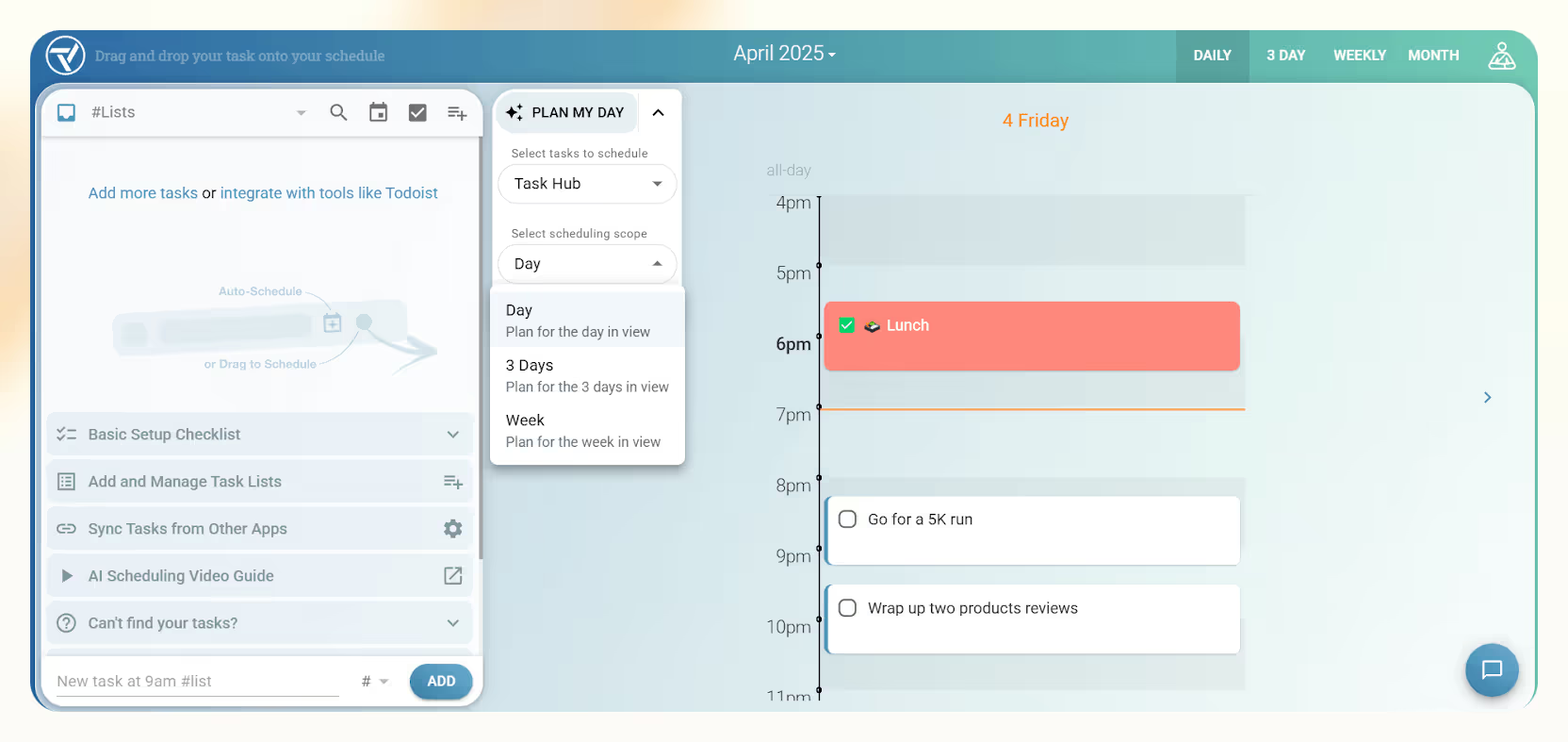
When I started using Trevor, it created a separate layer for task scheduling without rearranging existing events. I could toggle this layer on or off anytime, keeping things clean and giving me full control over how much the AI could do.
Trevor organizes everything in a central Task Hub. It works like a simple to-do list where you can drag and drop tasks into your day. The AI suggests the best time slots for each task and gradually gets better at it the more you use the tool.
The task scheduling process reminded me of Akiflow, but Trevor's interface feels more zen. No distractions, just soft colors, an intuitive layout, and a clear calendar view. You create tasks, group them into categories, and let the AI take the first look at your day. It'll even auto-adjust durations and nudge you to reschedule overdue tasks.
There's also a Smart Scheduling Queue—add many tasks, and Trevor will begin fitting them into your day. The Pro version unlocks smarter features like a personal AI model that learns how you work and a focus mode with a built-in action plan to help you stay on track. I love how I could add breaks between my different work hours, simply using a draggable timeline.

On the downside, Trevor isn't great with integrations. It plays well with basic task managers like Todoist or Microsoft To Do, but this might not be your pick if you need a Trello or Notion-style setup. Plus, you get a basic view of your day; there's no Kanban or Gantt to visualize your day better.
Features
- Filter suggestions for a day, a week, or a specific task list
- Focus Mode with a timer, a note field and a 5-step action plan
- Customizable timelines to move, reschedule, and complete tasks
- AI-powered progress tracker for insights
- Real-time updates with multi-calendar synchronization
Best For
Trevor might fall short for extensive scheduling, but it'll do a fine job if you're a student, a freelancer, or in a creative team. Tools like Lindy are a better alternative if you want advanced AI workflow automation and integration.
Pricing
Trevor offers two plans. The Free plan has features like unlimited task scheduling, AI-suggested time slots, the core Task Hub, and Focus Mode. It is ideal for solo users who want structure without paying a dime. For more perks, you can try the Pro plan:
- Pro ($6/month): Multiple calendar support, Smart Scheduling Queue, Recurring scheduled tasks, Personal AI model, Scheduling insights and analytics, Rescheduling suggestions
There’s a 30-day money-back guarantee and a 7-day free trial to test Trevor's usability.
Verdict
Trevor is great if you want a simple planner for solo use. It has a no-clutter interface and a Focus Mode that helps you get things done without distraction. But if you expect serious ROI from an AI tool, it might fall short. Don't expect it to work wonders if you're struggling with complex workflows.
7. BeforeSunset: Best for deep work with focus modes and daily planning
Score: 8.5/10
BeforeSunset AI simplifies task management and scheduling with a no-clutter interface. When I started using it, the interface felt clean and purpose-driven. No extra tabs, no team onboarding pop-ups. I logged in, added a few tasks, and let the AI organize my day.
With the Plan My Day button, you can enter your tasks, and BeforeSunset organizes them using one of five planning methods like Eat the Frog, Quick Wins, or Smart Balance.
I mostly stuck to Smart Balance, which did a decent job mixing deep work and admin tasks without overloading my schedule. You can drag tasks around or switch methods if you don't like how the day's shaping up.
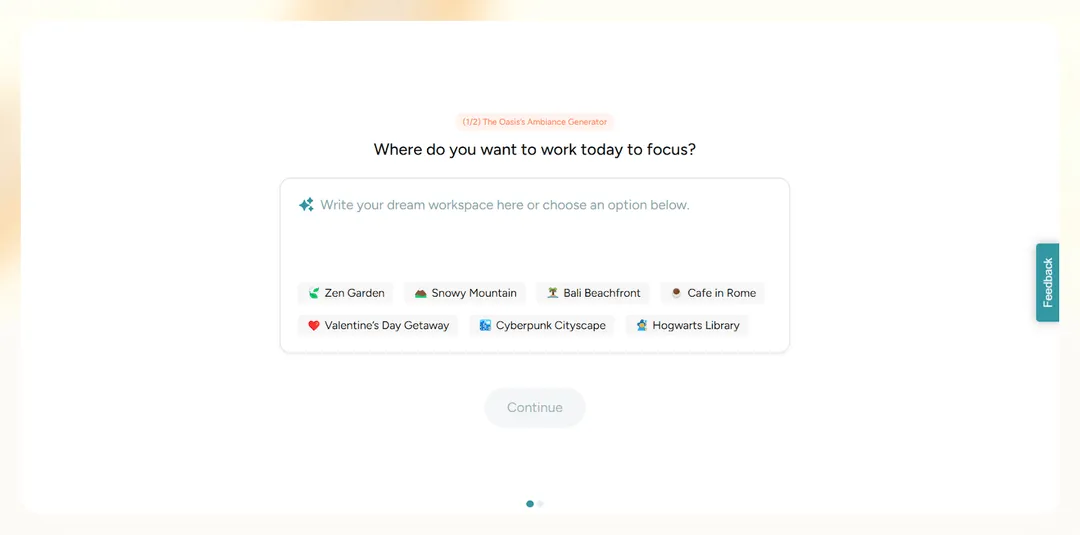
But what completely won me over was the Oasis Mode. It's a distraction-free zone that converts your screen into a workspace with ambient music, a Pomodoro timer, and even a digital manifestation wall (if that's your thing).
I picked a jazz soundtrack and set a Pomodoro timer while writing—it felt like I had a personal productivity coach with a taste in music. You can also drag your task tools anywhere, switch ambiances, and add quick to-dos without leaving the focus mode.

I liked how the app doesn't try to be everything. There's no group chat, no bloated dashboard—just a clean layout built around a daily focus. You still get weekly and monthly views to plan ahead, but the emphasis stays on your to-do list.
The AI features, like subtask generation, aren't always spot-on but come in handy sometimes. While BeforeSunset doesn’t have solid integrations like Lindy, it works well with tools like Slack, Notion, Outlook, and even Spotify for focus sessions.
Features
- Mobile access for planning on the go
- Add recurring tasks without manually re-entering them
- Toggle AI suggestions on or off anytime
- 30-day history of to-dos to track progress over time.
- BeforeSunset automatically rolls over pending tasks
- Note-taking for to-dos, ideas, and task-related details
Best For
BeforeSunset AI is great for freelancers, solopreneurs, coaches, and founders who want structure and some AI assistance without clutter.
Pricing
BeforeSunset offers two paid plans with a 14-day free trial:
- Pro Plan ($18/month): An AI assistant, unlimited calendars, dedicated Focus Mode, Plan My Day, weekly analytics, and unlimited bookmarks
- Team Pro Plan ($20/member/month): Everything in Pro plus a shared team workspace and periodic team analytics
Verdict
If you like minimalism but still need structure, BeforeSunset AI does a fine job. It makes daily planning feel more intentional, and the Oasis mode helps people like me to work without getting distracted.
8. Sidekick AI: Best for scheduling through email and Microsoft Teams
Score: 7/10
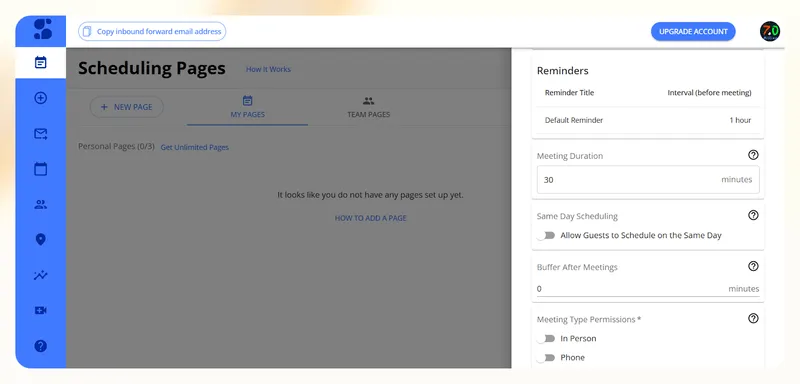
Instead of giving someone full access to your availability, Sidekick only offers a few curated slots based on your calendar. It's like sending someone a polite nudge instead of a wide-open door, which I personally like a lot.
But why did it make it to the list? The Forward to Schedule feature. If someone emails you asking to meet, you just forward the email to Sidekick, and it takes over. It'll figure out the time, handle back-and-forth, and book the call.
I tested this with a dummy account; sure enough, it replied with options, coordinated the timing, and even added the meeting to my calendar. Felt like having a real assistant quietly working behind the scenes.

Sidekick works best when paired with Microsoft Teams, a big plus for remote teams already tied to Microsoft. I connected my Teams account, set up a test event, and the scheduling flow was surprisingly smooth.
Whether you're using it for internal syncs or external client meetings, the Microsoft setup was easy and actually felt stable—something I don't always get with lesser-known tools.
Sidekick hasn't updated its feature set in the past few years. It still does the job for basic team scheduling, but this might not be the case if you're looking for something that evolves with your workflow.
Tools like Lindy go a step further—with conversational AI that helps you schedule, take notes, research, and even automate tasks beyond meetings.
Sidekick leans more toward one-on-one scheduling than full team calendar management. But if you're buried in meeting requests and tired of the endless email back-and-forth, it does a solid job of taking that off your plate.
Features
- Free plan with unlimited scheduled meetings
- Integrations with Google Meet, Zoom, Skype, and Teams
- Sends automated reminders for scheduled appointments
- Post-meeting statistics to automate schedule management
- Unlimited Personal and Team Scheduling Pages
Best For
Sidekick is best for solopreneurs and small teams who want a no-fuss AI task scheduler that works straight from email. It’s especially useful if you rely on Microsoft Teams and just need a clean, dependable tool for booking meetings.
Pricing
Sidekick offers two plans. The Hero Plan is free and includes 3 scheduling pages, support for Google, Outlook, and Microsoft 365, unlimited groups and contacts, and the ability to add your own logo. If you need more, you can upgrade to their paid plan:
- Superhero Plan ($5/month): Everything in the Free plan, plus unlimited sources and calendars, removes Sidekick branding, enables Forward to Schedule AI, and offers meeting stats, unlimited scheduling pages, and team pages for group scheduling
Verdict
I loved how Sidekick handled meeting requests straight from my inbox without me lifting a finger. But it feels like the platform's been stuck for a while. Their blog and YouTube haven't seen updates in a while, and there’s barely any sign of new features or smarter workflows rolling out. In such a case, finding an alternative like Reclaim, Motion, or Lindy is best.
9. Akiflow: Best for structured daily planning with strong integrations
Score: 9/10
Akiflow doesn’t try to reinvent your calendar—it just makes it way smarter. I’ve always had a messy stack of tabs, apps, and reminders, so pulling everything into a single dashboard felt like a relief. Akiflow's Universal Inbox pulls in tasks from Slack, Gmail, Notion, and even Todoist, so you're not constantly switching tabs just to remember what’s due.
What really made it stick, though? Time blocking. Once I imported all my to-dos, dragging them onto my calendar gave me that satisfying “okay, the day's mapped” moment. It's not just about productivity, it gave structure to my day. You can also snooze tasks, create quick commands with shortcuts, and auto-prioritize items.
Akiflow even nudges you with a daily shutdown. That gentle reminder to wrap up and preview tomorrow helped me mentally log off as someone who gets lost in work. It lets you estimate how long tasks will take so you're not blindly overbooking. I liked how Akiflow flagged double bookings and sent alerts when I tried to cram too much into a day.
While it doesn't do a lot of automation or AI scheduling like Lindy, it nails the foundations. If you've used tools like Zapier or IFTTT before, you'll feel right at home. I linked Akiflow with Google Tasks, Discord, Evernote, Spotify, and YouTube. It's surprisingly flexible.
You can even build custom integrations and automate the boring bits without any coding. It fits right in if you’re building a workflow around multiple tools.

Features
- Daily Rituals Assistant for morning and evening planning
- View your team's shared calendars
- AI auto-assigns tasks based on habits
- Turn emails and messages into tasks
- Works offline without losing productivity
- Shortcuts and Command Bar for quick task actions
Best For
Akiflow is ideal for founders, executives, designers, developers, marketers, and sales teams who need a highly structured productivity system with rich integrations and real-time calendar control. It’s especially useful if you work across a bunch of tools and need everything to stay in sync.
Pricing
Aside from the free trial, Akiflow has two subscription models for its paid plan:
- Pro Monthly ($34/month): Unlimited integrations, unlimited tasks, unlimited meetings, 1:1 coaching call, all features included
- Pro Yearly ($9.50/month, billed annually): Everything in Pro Monthly, 72% discount, cancel anytime
Verdict
Akiflow fits right into your workflow if you use calendars a lot. It is more of a daily command center than an AI assistant, and for people like me who love planning but hate chasing tasks across apps, it's worth a try. Just be sure the price fits your budget.
10. Otter Assistant: Best for transcribing and summarizing meetings in real time
Score: 8/10
Otter is more like a personal assistant who never zones out in meetings.
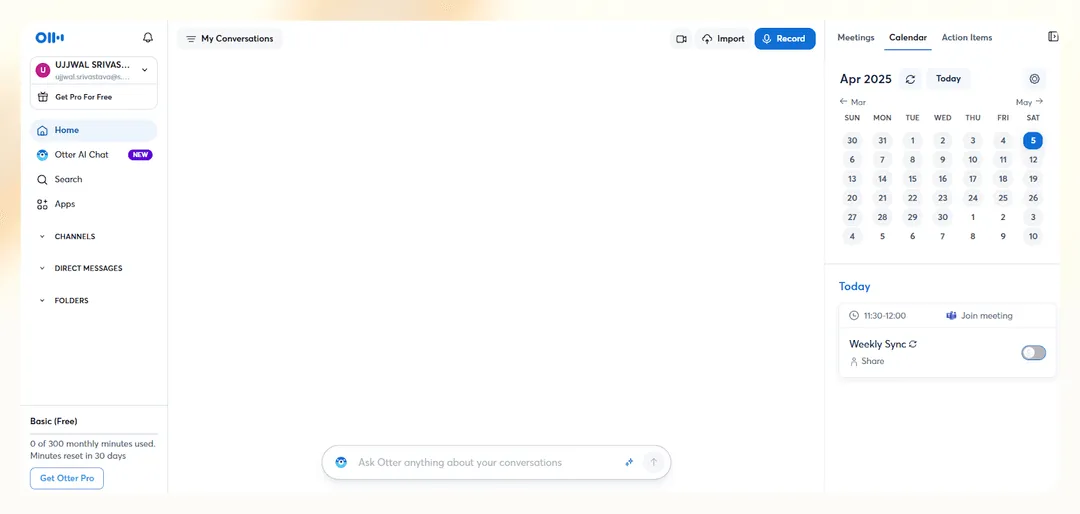
What stood out to me the most was how Otter turned meeting recordings into searchable transcripts almost in real time. I could highlight key points, label who said what, drop in comments, and even generate summaries while the meeting continued.
The editing tools are sharp and responsive, too. You can jump between audio segments, label speakers, or correct transcript errors on the fly.
The Otter Meeting Agent goes beyond passive transcription. It joins your Zoom meetings (for now), listens in real time, and responds to voice commands. You can ask it to schedule follow-ups, assign action items, or draft emails during the meeting. This makes it feel less like a recorder and more like a team member.
Otter AI Chat builds on this by answering questions from current or past meetings. It keeps the conversation going asynchronously, so you don't miss any important takeaways, even when catching up later.

I hoped for better integration support for an AI tool to automate workflows. Otter does work with Google Meet, Microsoft Teams, Slack, Zoom, and Dropbox, but it's not perfect. When I tested it during two Zoom calls, it had trouble recording stuff.
That's when the upload limit on pre-recorded files started to feel like a real pain. Still, regular solo calls and team meetings got the job done.
Otter's layout is tidy and intuitive. You've got agendas, transcripts, and notes in one place, with a search bar that makes it easy to find past conversations. I even had a friend test it during a biomechanics lecture, and they liked how Otter captured the key points.
It skipped the filler words, kept things concise, and even took snapshots of infographics during the lecture.
Features
- Transcription and summaries in English, French, or Spanish
- Workspace Admin features like usage analytics, prioritized support
- Exportable transcripts in multiple formats
- Otter AI incorporates GDPR and CCPA standards into its data practices
- Video Replay for Zoom, Google Meet, and MS Teams
Best For
Otter is great for students, content teams, and remote professionals who need clear, searchable notes from live meetings or lectures. Otter takes much off your plate if your workflow involves interviews, brainstorming sessions, or lectures where accuracy and speed matter.
Pricing
Otter offers a free Basic plan with generous transcription support. You get 300 transcription minutes per month (30 minutes per conversation) and can import 3 audio or video files over a lifetime. It also includes real-time transcription and access to Otter AI Chat. You can also check out Otter's paid plans:
- Pro ($16.99/user/month): 90-minute conversations, 10+ file uploads monthly, advanced search/export, speaker tagging, and team collaboration tools.
- Business ($30/user/month): Join 3 meetings simultaneously, unlimited file uploads, usage analytics, prioritized support, and full admin controls.
Verdict
While Otter does a solid job helping you jot down important stuff, it's not a straightforward meeting scheduler. Instead, it is more of a note-taking app for capturing, organizing, and revisiting conversations. So, if you want an AI-powered tool with quick scheduling tools, Lindy is a better choice.
{{cta}}
Try Lindy: Your new AI scheduling assistant — and way more
Lindy goes beyond the limitations of typical scheduling assistants. Its pre-built templates for meeting and workflow management are engineered for adaptability, combining efficient support with deep understanding.
Here's how Lindy goes the extra mile:
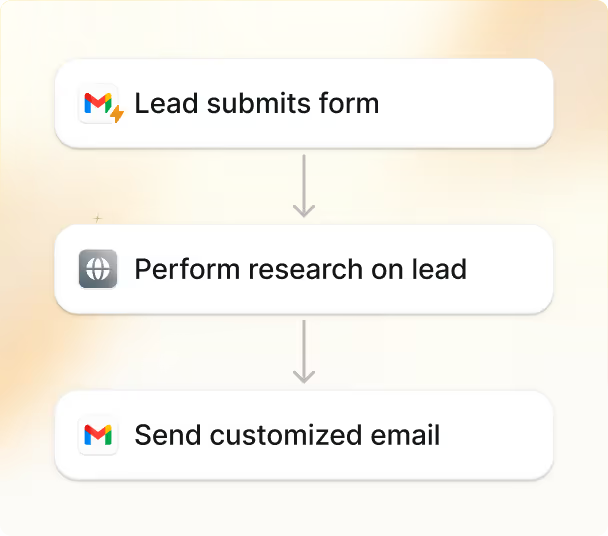
- Effortless meeting coordination: Lindy handles scheduling precisely, finding common availabilities, managing back-and-forth communication, and sending out invites—all while keeping you in control.
- Smart preparation for meetings: With features like research mode and note-taking, Lindy ensures you're always prepared. It retrieves past interactions, highlights key points, and organizes action items seamlessly.
- Customizable scheduling rules: Need a buffer between meetings or want to protect your personal time? Lindy adapts to your preferences with ease.
- Seamless calendar integration: Whether you use Google Calendar or Outlook, Lindy syncs effortlessly, ensuring your schedule stays organized across platforms.
- Balances work and life: From coordinating team meetings to prioritizing personal commitments like gym sessions or family calls, Lindy helps you maintain harmony.
- Beyond scheduling: Lindy’s capabilities extend to automating workflows, managing emails, and even generating meeting insights—making it the ultimate productivity partner.
- Much more than just a scheduler: There’s a huge variety of Lindy functions, from content creation to coding. Check out the full Lindy features list.
Want to go beyond scheduling assistants and start automating your workflows in just a few minutes?



.png)
.png)
.png)
.png)
.png)


